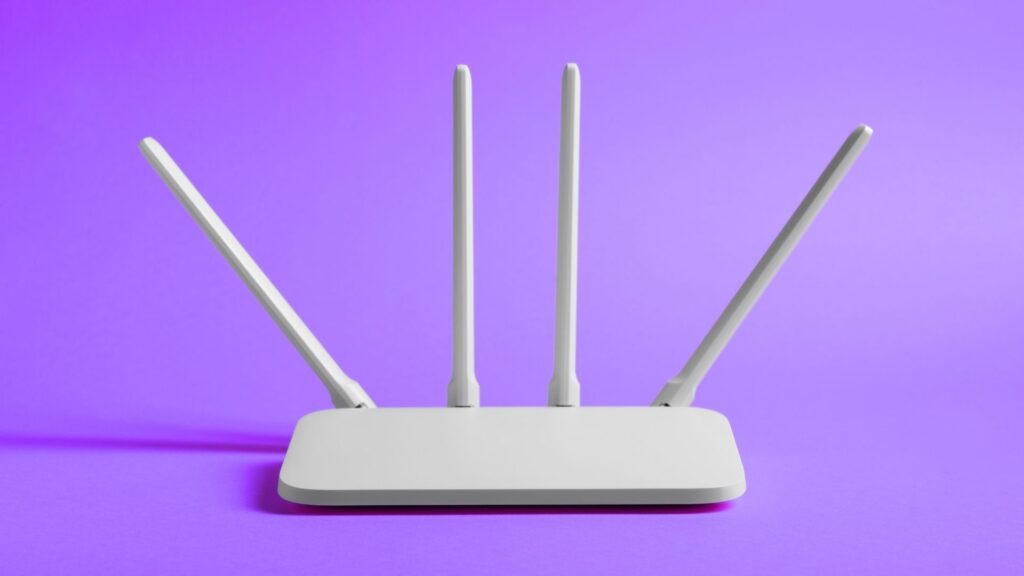
Your router is the key to your Wi-Fi at home. All your devices are connected to it, like your phones, tablets, gaming consoles, TV, your air fryer and your kids’ devices, which of course you want to protect. This is where router parental controls come in and it’s surprisingly easy to set up. Let’s get started.
Set up your router in 5 easy steps
Follow these easy steps to set up parental controls on your router to help keep your family and kids safe online.
1. Access your router’s admin panel
The first thing you need to do is access your router’s admin center. From your computer or laptop, open your preferred web browser and enter your router’s IP address:
- Most common: 192.168.1.1 or 192.168.0.1
- Check the sticker on your router if these don’t work
You’ll need the admin username and password to log in. If you haven’t changed it before, check the sticker on the router or the instructions in the router’s box for the details – it’s probably “admin/admin” or “admin/password”. You can also check the router’s website for the details.
Please change the password once you’re done! It’s a massive cybersecurity risk to keep using it with the default credentials – anyone can easily access it by googling the manufacturer’s info.
2. Find the parental controls section
Where the parental controls are located depends on the manufacturer. In the admin center, look for terms like:
- Parental Controls
- Access Restrictions
- Family Safety
- Content Filtering
- Time Restrictions
3. Set up device profiles
Most of the new router models allow you to create profile for each family member. You’ll typically identify devices by their MAC address (a unique identifier) or device name. You can even rename devices to make it easier to identify, like “Willow’s Laptop” instead of the default name of letters and numbers.
4. Configure your restrictions
This is the fun part:
- Time controls: Set controls for internet “bedtimes” and study hours. You can even set rules for no internet during dinner time. This will automatically pause the Wi-Fi during the specified times.
- Content filtering: Ensure that categories like adult content, social media, or gaming sites are blocked as required. Most routers offer preset age groups to make it easier.
- Website blocking: Add specific websites to your naughty list so that it can’t be reached.
- Bandwidth limits: Set limits so that one device can’t hog all the internet speed during peak hours, even if you’re on an unlimited package.
5. Test and adjust
Once you’re done, save the settings and test them to see if they work. Try accessing restricted content or any of the other options you’ve configured. If they don’t work, check your configuration and try again.
Bonus tips
- Schedule different rules for weekdays vs. weekends: School nights can have stricter rules than Saturday mornings so that kids aren’t staying up late scrolling TikTok.
- Set up guest networks: Guest Wi-Fi can be used for visitor devices to protect your controlled family Wi-Fi.
- Use safe search enforcement: This option automatically restricts search engines from showing inappropriate content.
- Monitor usage reports: Most routers provide detailed logs of internet activity which will help you to identify any strange activity.
When the router controls aren’t enough
The router’s standard parental controls are great, but they can have limitations:
- Limited app-specific controls like not being able to block Instagram while allowing other websites.
- It may not be able to work with HTTPS encrypted traffic on some older routers.
- It only works on Wi-Fi – it won’t apply if you’re using cell data on your smartphone.
If you need more granular controls, then you may need to consider device-specific apps to assist.
Common mistakes to avoid
Here are a few common mistakes to avoid when setting up the parental controls:
- Don’t block everything. Yes, it may seem easier to just block everything, but kids will find workarounds if they are restricted too much. Find a balance instead.
- Don’t forget to do those updates. Routers need updates too and the updates can sometimes improve the parental control features.
- Don’t set the same rules for all ages. Depending on your kid’s age, they will need different levels of controls. Think of how movies are rated for different ages.
- Have a conversation. While the technology will enforce the rules, your kids and family need to understand why the rules are in place. Having an open conversation with them and allowing them to ask questions will make adoption easier.
Start small, start today
You don’t have to do it all at once. Start with basic time restrictions and content filtering, then adjust as you learn what works best for your family. Remember, the goal is teaching responsible internet use, not creating digital prisoners.
Get started today. Log into your router and spend 15 minutes setting up some of the basic controls. And don’t forget to change those default passwords! Be secure!